Printer setup and troubleshooting, step by step
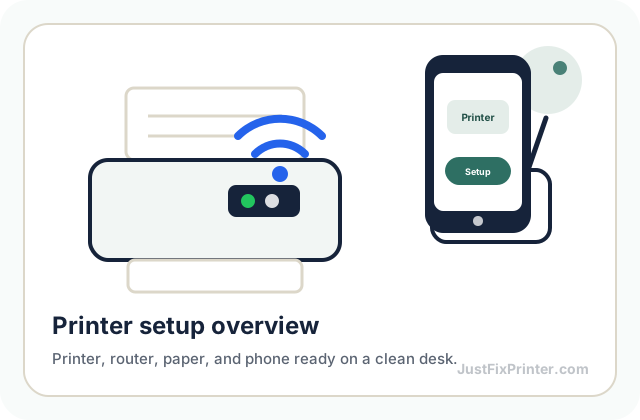
Choose your printer brand or model, follow the connection steps, then confirm the result with a small test print. Use the matching problem guide when one check fails.
The three things that need to talk to each other before printing works
Choose the printer. Pick the problem. Follow the checks.
JustFixPrinter is built for people who want simple help without confusing words. Start with your model, choose the problem, then follow clear setup, Wi‑Fi, driver, scan, offline, and paper-jam steps.
Printer setup by brand
Choose the name printed on your printer. Each landing page connects setup, Wi-Fi, software, model guides and troubleshooting without making you restart your research.
HP setup
HP app, 123.hp.com, Wi-Fi, USB and test printing.
HP guide →Canon setup
Canon software, Wi-Fi, USB, mobile printing and model help.
Canon guide →Brother setup
Drivers, Wi-Fi, USB, mobile setup and model instructions.
Brother guide →Xerox Smart Start
Smart Start, driver selection, printer discovery, print and scan.
Xerox guide →Epson resources
Official setup links, software, Wi-Fi and troubleshooting guides.
Epson resources →Lexmark resources
Business printer software, network setup and model help.
Lexmark resources →Search by model number
Enter the full brand and model shown on the printer label, such as “HP OfficeJet Pro 9015e” or “Canon PIXMA TS3520.” We will identify the brand and point you to the best starting guide available on this site.
Model
Six steps, in order
This sequence is a safe starting point for many home and office printers. Confirm supplies, connection methods, software and button names in the instructions for your exact model.
Unbox and remove shipping locks
Take out all orange tape, cardboard inserts, and plastic clips from the ink or toner compartment — these are easy to miss and will jam the printer if left in.
Install ink or toner and load paper
Install cartridges until they click into place, then load plain paper into the tray, adjusting the width guides so they sit snugly against the stack.
Power on and let it finish its first calibration
Most printers run an automatic alignment or cleaning cycle on first power-up. Wait for it to finish and go fully idle before connecting it to anything.
Connect it to your network or computer
Use the wireless menu, manufacturer app or installer supported by your model. For USB, use a data cable and connect it when the model instructions or installer asks.
Install the driver from the manufacturer's site
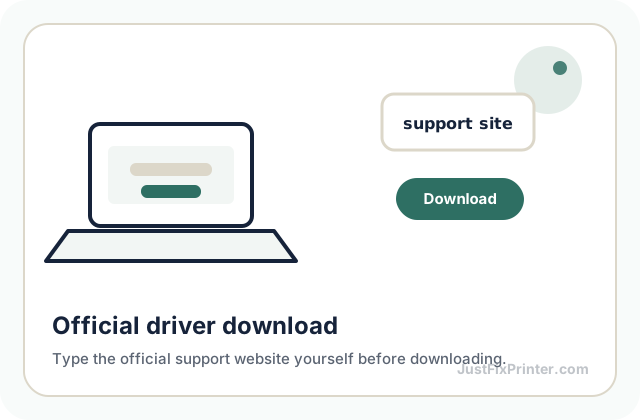
Open the manufacturer’s official support page, match the exact model and operating system, then install the software it recommends. Printing, scanning and app support vary by model and device.
Print a test page
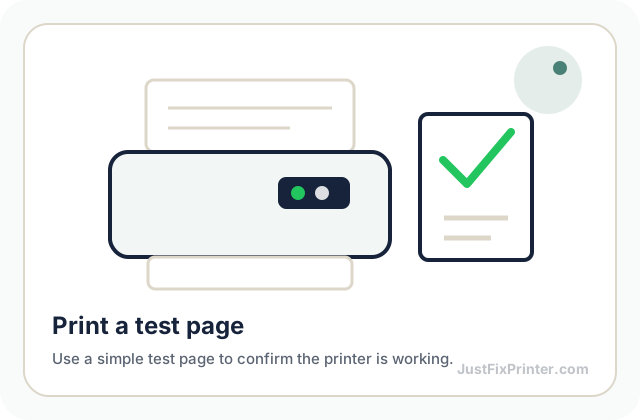
Once installed, print a test page from your computer's printer settings. If it prints, you're done — if not, check the troubleshooting section below before contacting anyone.
Find your printer's official driver page
We don't send you to a third-party lookalike site. Click a brand below to jump to our driver directory for that brand, or type the official support domain shown into your address bar yourself. We're also building out model-specific instructions as we verify them.
HP
Driver downloads, HP Smart app, and warranty lookup by serial number.
support.hp.comHP support resources
About HP printers, official HP setup links, HP Smart, warranty starting points, and JustFixPrinter HP troubleshooting.
HP resources →Canon
Driver and software downloads by model, plus manuals.
usa.canon.com/supportCanon support resources
Canon official support, warranty, contact, manuals, driver links, and JustFixPrinter Canon troubleshooting.
Canon resources →Epson
Driver downloads, ink level tools, and support articles.
epson.com/supportEpson support resources
Epson official support, warranty, contact, manuals, driver links, Smart Panel, and JustFixPrinter Epson troubleshooting.
Epson resources →Brother
Driver downloads and setup guides by model number.
support.brother.comBrother support resources
Brother official support, warranty, contact, manuals, driver links, and JustFixPrinter Brother troubleshooting.
Brother resources →Lexmark
Driver downloads and firmware updates for business printers.
support.lexmark.comLexmark support resources
Lexmark official support, warranty, contact, manuals, business printer drivers, and JustFixPrinter Lexmark troubleshooting.
Lexmark resources →Not sure of your brand?
Check the front or top panel of the printer itself — the brand and model are almost always printed there.
Browse all supported models →Guides you can download and keep
Download these JustFixPrinter PDFs directly. No email, phone number or account is required. Use the exact manufacturer manual when your model’s controls or supported features differ.
Universal Setup & Installation Guide
The full six-step setup process in more detail, plus wireless connection tips and the most common first-time errors.
Download PDF →Troubleshooting Handbook
Fixes for the problems that come up most: connectivity drops, streaky prints, paper jams, and driver issues.
Download PDF →Maintenance & Care Guide
A simple weekly-to-yearly maintenance rhythm, plus cleaning, storage, and tips to extend your printer's working life.
Download PDF →Printable Alignment & Nozzle-Check Test Page
Print this at 100% scale to check for gaps, misalignment, banding, or color issues — the same kind of pattern a self-service diagnostic would show you.
Download PDF →
Looking for your printer's official manufacturer manual (the exact one that shipped in the box)? Those are copyrighted documents we can't host ourselves — go to support.hp.com (HP), usa.canon.com/support (Canon), epson.com/support (Epson), support.brother.com (Brother), or support.lexmark.com (Lexmark) directly and search your model there.
Troubleshooting
Start with the general steps below, then use the error lookup or the reference grids further down if the problem is more specific.
Try these first, in order
These five checks resolve the large majority of printer problems, regardless of the specific symptom.
Restart everything, in order
Restart the printer and the device you print from. Restart a home router only when other devices also show a network problem and you can do so safely. On a managed work network, ask the administrator.
Check the printer's own display and lights
Look for a blinking light, an on-screen message, or an open cover warning. Printers usually know exactly what's wrong before your computer does — an ink/toner warning or paper warning here rules out half of all other causes immediately.
Confirm the connection itself
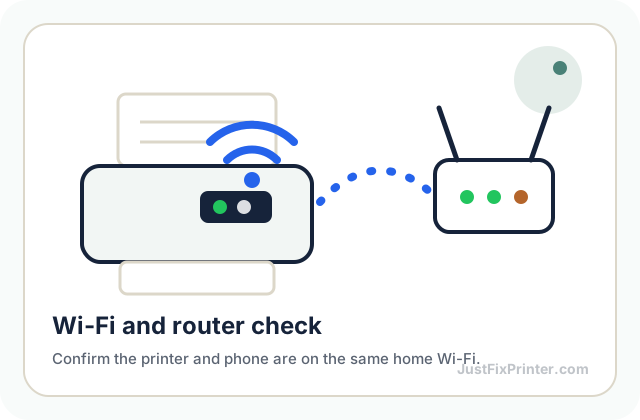
For USB, try a different cable or port if possible. For Wi-Fi, check the network name on the printer's own display matches your actual network, not a guest network or an old saved one.
Clear the print queue and set the default printer
A stuck earlier job can block everything behind it. Open your computer's printer settings, clear any pending jobs, and confirm the correct printer is set as default — not a second, offline, or "fax" copy of it.
Reinstall the driver if the above didn't help
Uninstall the current driver from your computer's settings, restart, then download and install the driver fresh from the manufacturer's own site. This resolves problems that are specific to a corrupted or outdated installation. If the install itself keeps failing, see our driver installation troubleshooting guide.
Search your model and error for a fix
Enter your printer's model number and the error code or message on its display. We'll search the manufacturer's own official support site so you get their current, correct fix — never a generic result.
Common wireless printer errors
These patterns account for most wireless setup problems, across every brand. Find the one that matches before searching for a specific code. Setting up the Wi-Fi connection for the first time? See our full guide to connecting a printer to Wi-Fi.
"Printer offline" in the print queue
Usually means: the printer lost its Wi-Fi connection after setup, or a stale copy of it is still listed.
Try: remove the printer from your computer's printer list and re-add it, and rejoin the network from the printer's own display menu. Full breakdown of offline causes →
Printer not found during setup
Usually means: the printer and device are on different local networks, guest isolation blocks discovery, or the printer does not support the selected Wi-Fi band.
Try: check the network names, guest-network isolation and the Wi-Fi bands supported by the exact printer. Keep the printer near the router during setup. Full breakdown →
Wi-Fi connection keeps dropping
Usually means: a weak signal at the printer's location, or the router repeatedly switching it between 2.4GHz and 5GHz ("band steering").
Try: move the printer closer to the router and check the model’s supported Wi-Fi settings. Change shared router settings only when you understand the effect on other devices. Full breakdown →
Printer connected to the wrong network
Usually means: it joined a guest network or an older saved network instead of your main one.
Try: check the network name shown on the printer's own display, and rerun the wireless setup wizard to pick the correct one explicitly. Full breakdown →
Printer's IP address keeps changing
Usually means: your router is reassigning a new address to the printer periodically, which can make your computer lose track of it.
Try: first remove stale printer entries and add the current printer again. If the address keeps changing, an experienced home user or network administrator can consider a DHCP reservation. Full breakdown →
Firmware or driver update fails partway
Usually means: the wireless connection dropped mid-update, which can happen more easily over Wi-Fi than USB.
Try: move the printer closer to the router before updating, or connect it via USB just for the update if it keeps failing. Full breakdown →
Other common printer problems
Not connectivity-related? These cover the next most common issues, regardless of how the printer is connected.
Printer works but scanner doesn't
Usually means: only the "basic" print-only driver got installed, rather than the "full feature" package that includes scanning.
Try: reinstall the driver from the manufacturer's site, choosing the full/complete package this time, and check your OS's scan app (Windows Fax and Scan, or Mac Image Capture) recognizes it as a scan source. Full breakdown →
Paper jam or paper stuck inside
Usually means: a torn scrap from a previous jam, an overfilled tray, or damp/curled paper causing sheets to catch on the rollers.
Try: power off first, open every access panel, and pull any stuck sheet gently in the direction of the paper path — never at an angle. Check for small torn pieces before closing everything back up. Full breakdown →
Diagnose your print quality
Pick what your printed page actually looks like, and we'll narrow down the likely cause and fix — plus link you to the test page above if it'll help confirm it.
The printer won't connect to Wi-Fi
Confirm the printer and your device use the intended local network, then check the Wi-Fi bands and setup method supported by the exact model. Restart the printer and rerun its supported wireless setup. Restart a shared router only when appropriate.
My computer doesn't see the printer
Make sure the driver installer finished completely before connecting via USB, or that both devices are on the same network for Wi-Fi setups. Recheck your operating system's printer settings — sometimes the printer is installed but not set as default.
Print quality looks streaky or faded
Run the built-in cleaning cycle from the printer's maintenance menu or from its companion app, then print a nozzle-check page. This usually resolves itself after one or two cleaning cycles.
The installer shows an error code
Note the exact error code and search for it on your printer brand's official support site (linked above) — official pages list the real, current fixes for each code. Be cautious of any unrelated site that shows a generic error and immediately pushes you to call a phone number; legitimate manufacturers list free web-based troubleshooting first.
Still stuck?
If you've gone through the steps above and it's still not working, reach out — we'll look at the specific error and your printer model before suggesting anything.
Find help for trending HP, Canon, Epson, Brother, and Lexmark printers
Start with these high-priority model pages, or browse the full model library if your exact printer is different.