"Offline" is one of the most common and most misleading printer messages there is — the printer itself is almost always perfectly fine. Here's what's actually going on, in order of how often each cause turns out to be the real one.

A slow, clear JustFixPrinter video for this page is being prepared. The written guide below is ready now and follows the same step-by-step support style.

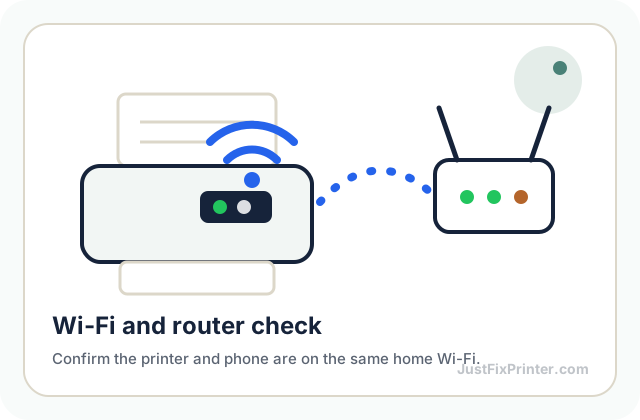
It lost its Wi-Fi connection after setup. By far the most common cause. Printers stay connected to Wi-Fi in the background, and that connection can quietly drop after a router restart, a firmware update, or just time — without anything on the printer's own display indicating a problem. Your computer's printer list still shows the printer as installed, so it looks like a computer-side issue, when really the printer just needs to rejoin the network. Check the printer's own display for its network status, and rerun the wireless setup if it shows disconnected.
A stale or duplicate printer entry. If you've ever reinstalled a driver, switched networks, or set up the same printer twice, your operating system may be holding onto an old, no-longer-valid entry alongside the current one — and defaulting to the wrong one. Open your computer's printer settings, remove any duplicate or clearly outdated entries for the same printer, and confirm the remaining one is set as default.
The printer and computer are on different networks. This happens more than you'd expect: a printer connected to a guest network, an older saved network, or the "wrong" band on a dual-band router (2.4GHz vs 5GHz) will show as offline to a computer on the main network, even though the printer itself is on and working. Check the exact network name shown on the printer's own display against what your computer is connected to.
The computer went to sleep or changed networks. Laptops especially can lose track of a network printer after sleep, a VPN connection, or switching between home and another Wi-Fi network. Simply restarting the print spooler (Windows) or removing and re-adding the printer (macOS) usually resolves this without touching the printer itself at all.[1]
A stuck print job blocking the queue. An earlier job that failed partway can jam the entire queue behind it, and some systems report this as the printer being offline rather than showing the actual stuck job. Clear the print queue completely and try a fresh test print.
Restart in this order: the router first, then the printer, then your computer — waiting for each to fully come back online before restarting the next. This single sequence resolves the large majority of "offline" cases because it clears both a dropped Wi-Fi session and a stale connection cache at the same time, without you needing to diagnose which of the five causes above was the actual one.
Restart in this order: router first, then printer, then computer, waiting for each to fully come back online before the next — this single sequence resolves the large majority of "offline" cases at once.
Download this exact page as a PDF to keep or print — no email required.
Our wireless errors reference covers network-specific causes in more depth, including router settings that can cause this repeatedly.
See common wireless errorsThree ways to get any printer onto your network, plus the 2.4GHz vs 5GHz setting that trips people up.
Read the article →The four categories almost every printer error falls into.
Read the article →The specific sequence that resolves most failed installations.
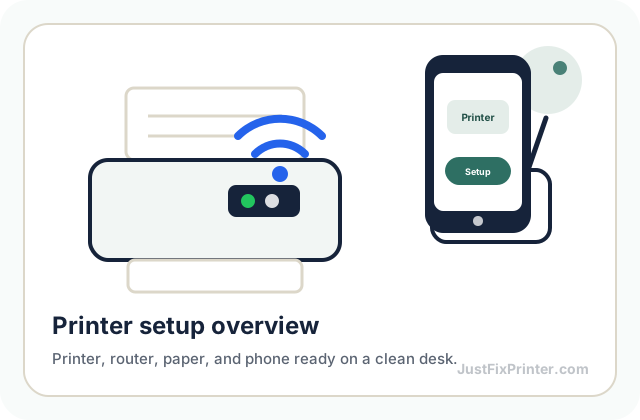
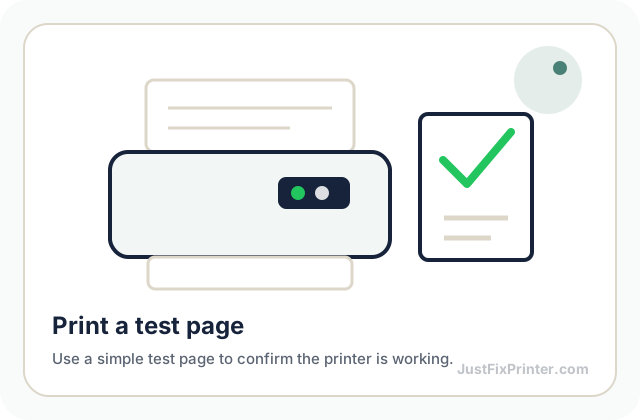
Read the article →These visuals are matched to this page topic. They show the important printer parts, screens, connections, and test steps using lightweight, fast-loading local images.