
Quick answer
- Turn on the HP printer, load paper, and keep it close to the router if you are using Wi‑Fi.
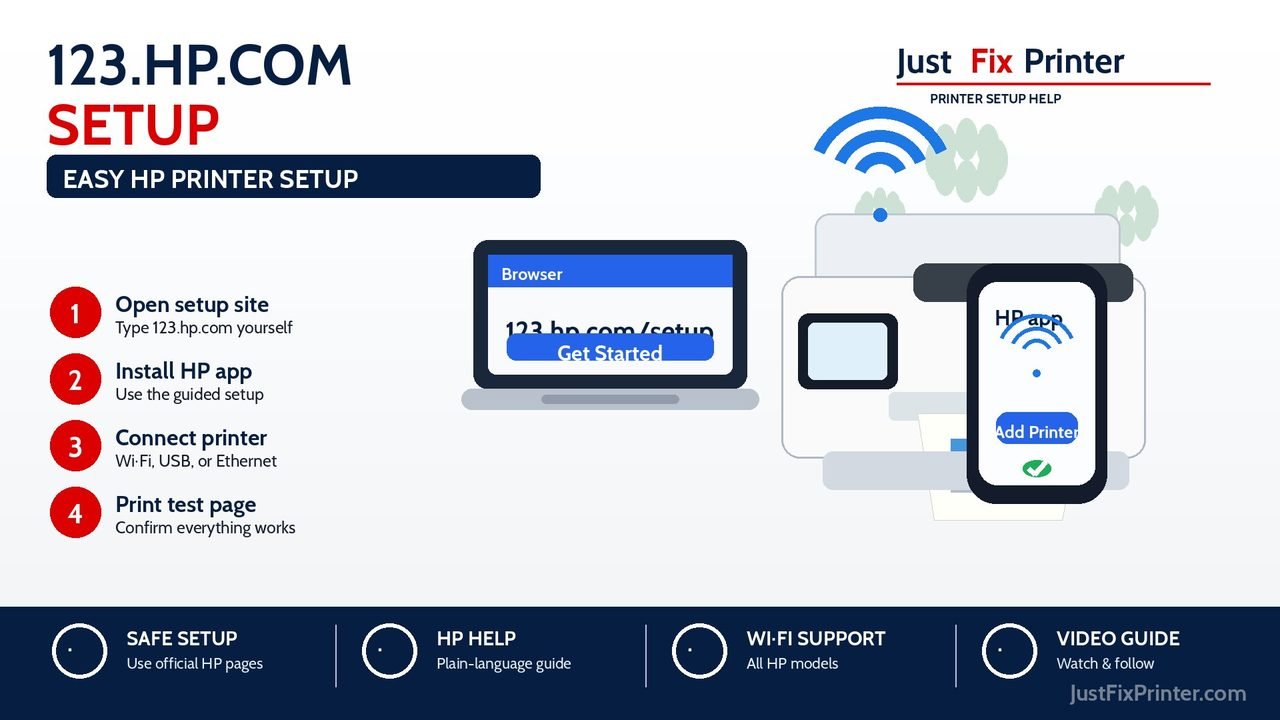
- Open HP Start, or type
123.hp.comand confirm that any redirect remains onhp.com. - Search for your exact HP printer model and install the HP app or driver shown for your device.
- Add the printer, choose Wi‑Fi or USB when asked, then print one small test page.
Get the right HP setup path
Your selections stay in this browser. Never enter a Wi-Fi password, serial number, email, phone number, or payment information on this page.
Step-by-step video guide
A slow, clear JustFixPrinter video for this page is being prepared. The written guide below is ready now and follows the same step-by-step support style.
Choose your device
The setup steps are slightly different depending on the device you are using. Start with the device in your hand, not the printer model page. After the printer is added, you can use our model library to find deeper help for that exact printer.
iPhone / iPad
Use the HP app or AirPrint when your printer supports it.
iOS / iPadOSAndroid
Use the HP app and allow only the nearby-device permissions it requests.
Phone / tabletWindows
Install the HP app or driver, then add the printer from Windows settings if needed.
Windows 10 / 11Mac
Use the HP app, AirPrint, or macOS Printers & Scanners.
macOSChromebook
Connect both devices to the same network, then add the printer in Chrome OS.
Chrome OSLinux
Use your distribution printer settings and HPLIP when your model is supported.
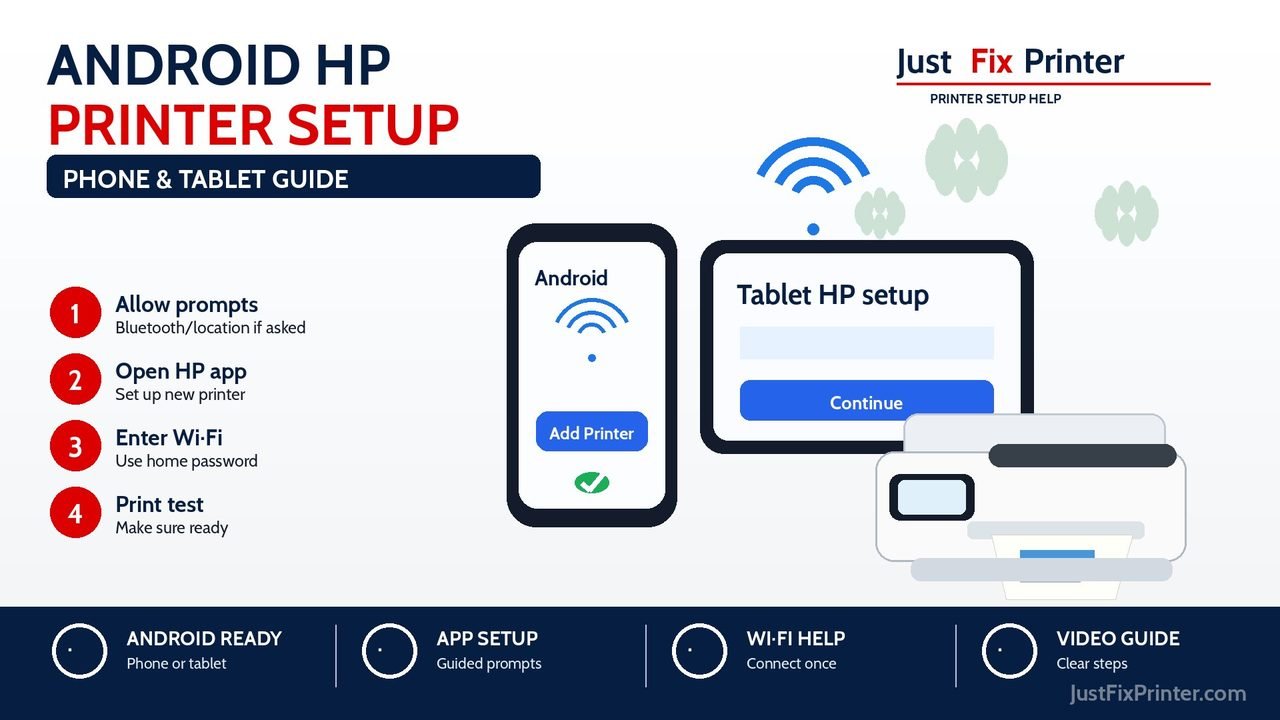
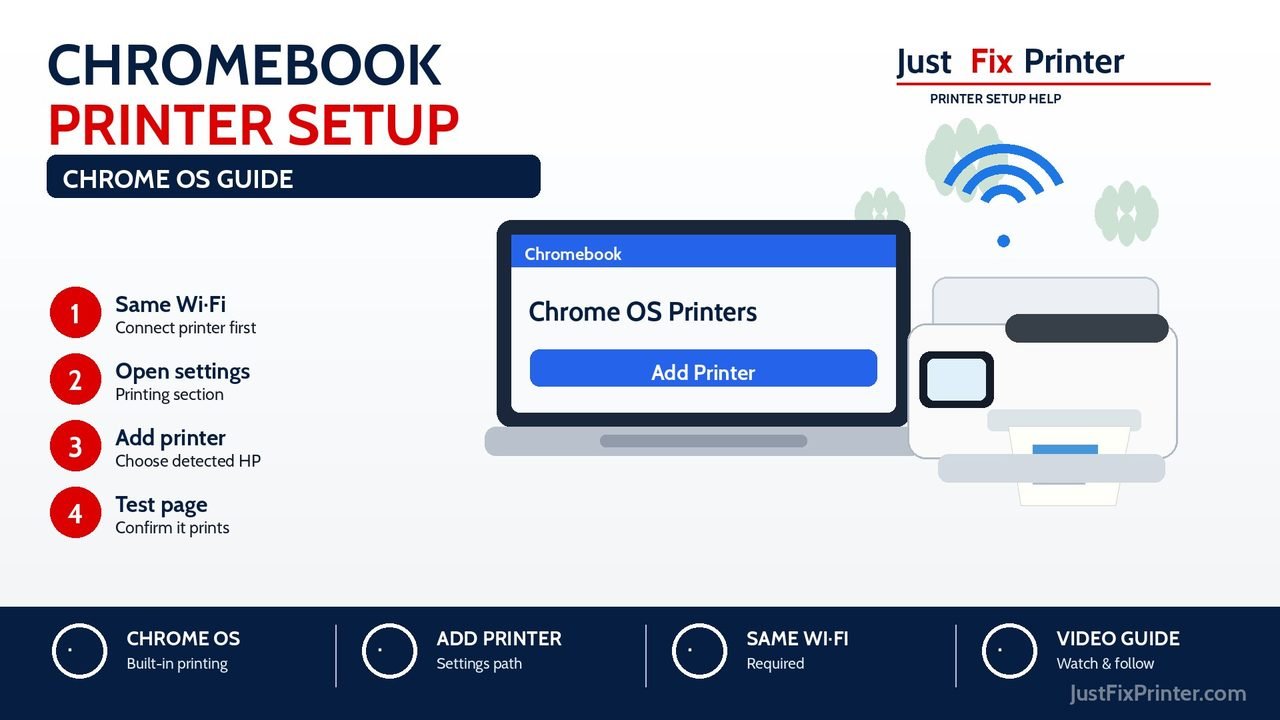
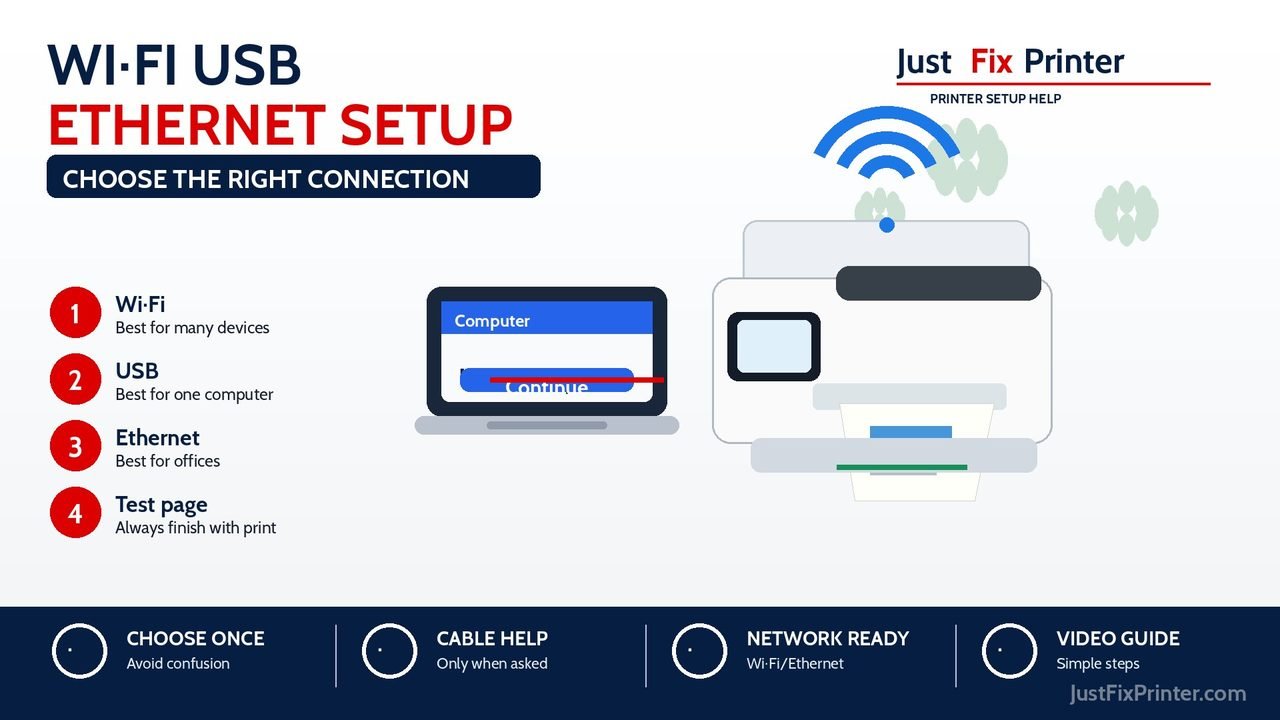
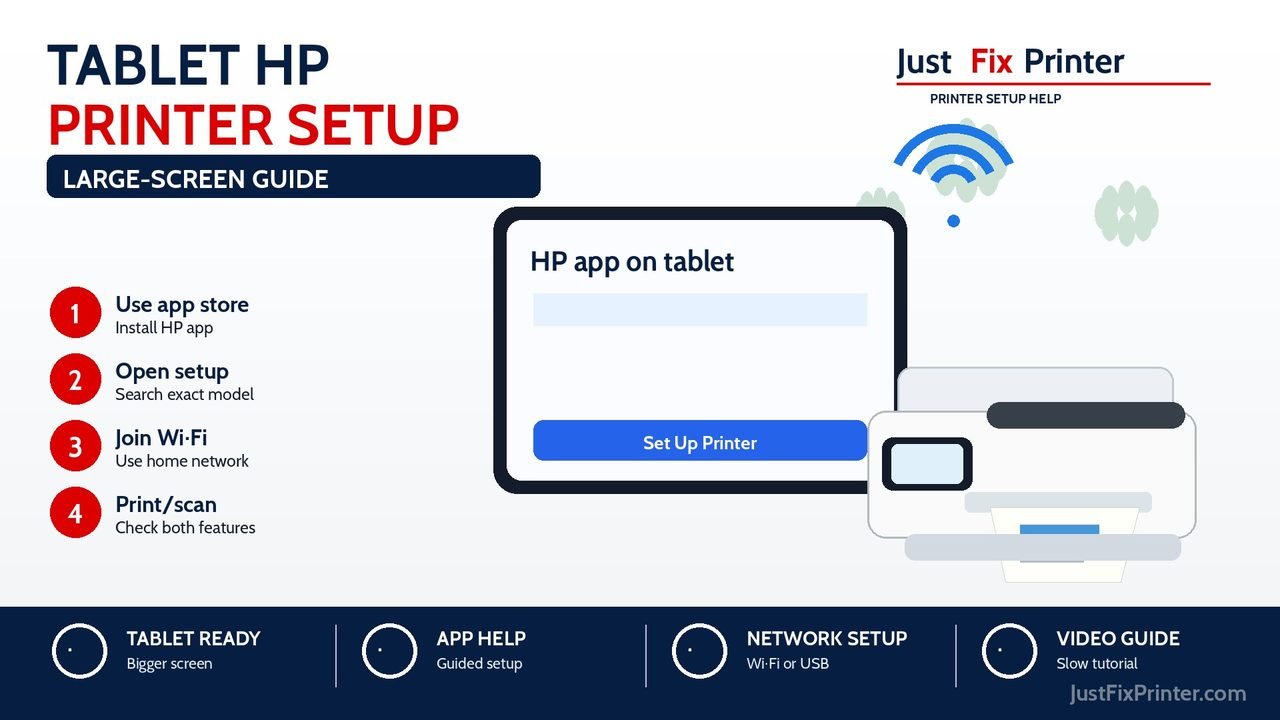
Linux / HPLIPSetup images for Windows, Mac, Android, iPhone, iPad, tablet, and Chromebook
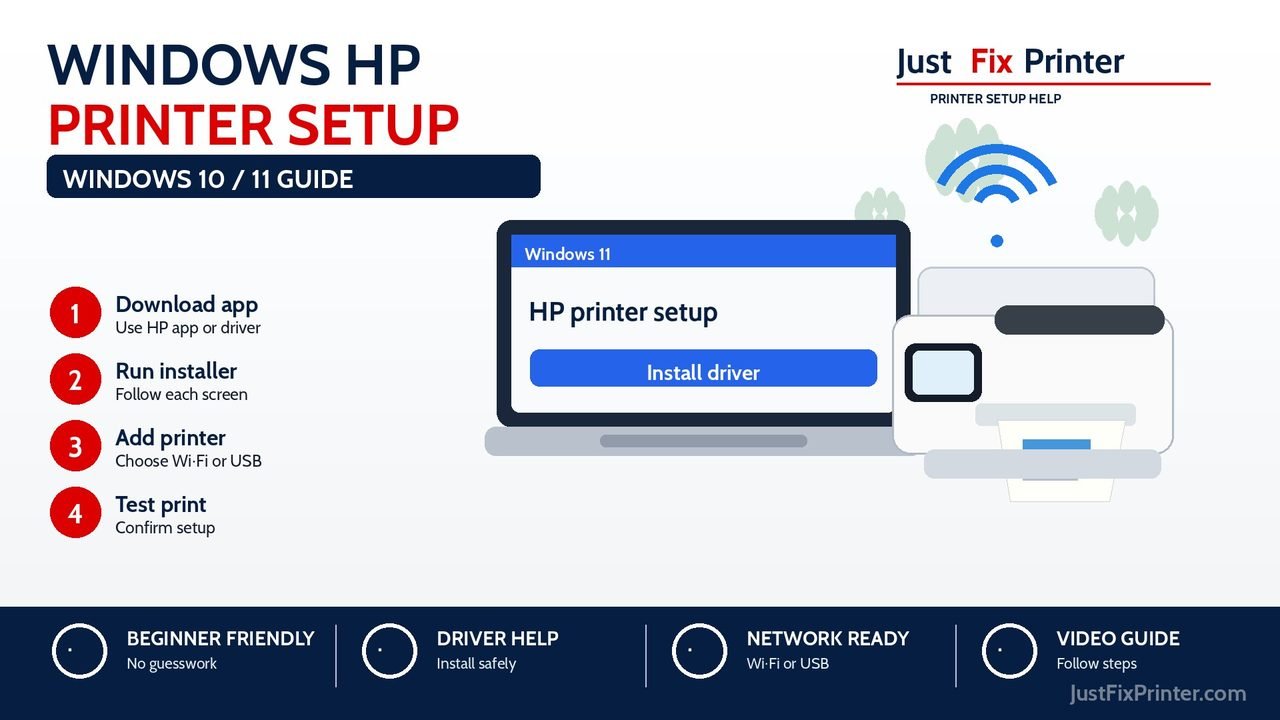
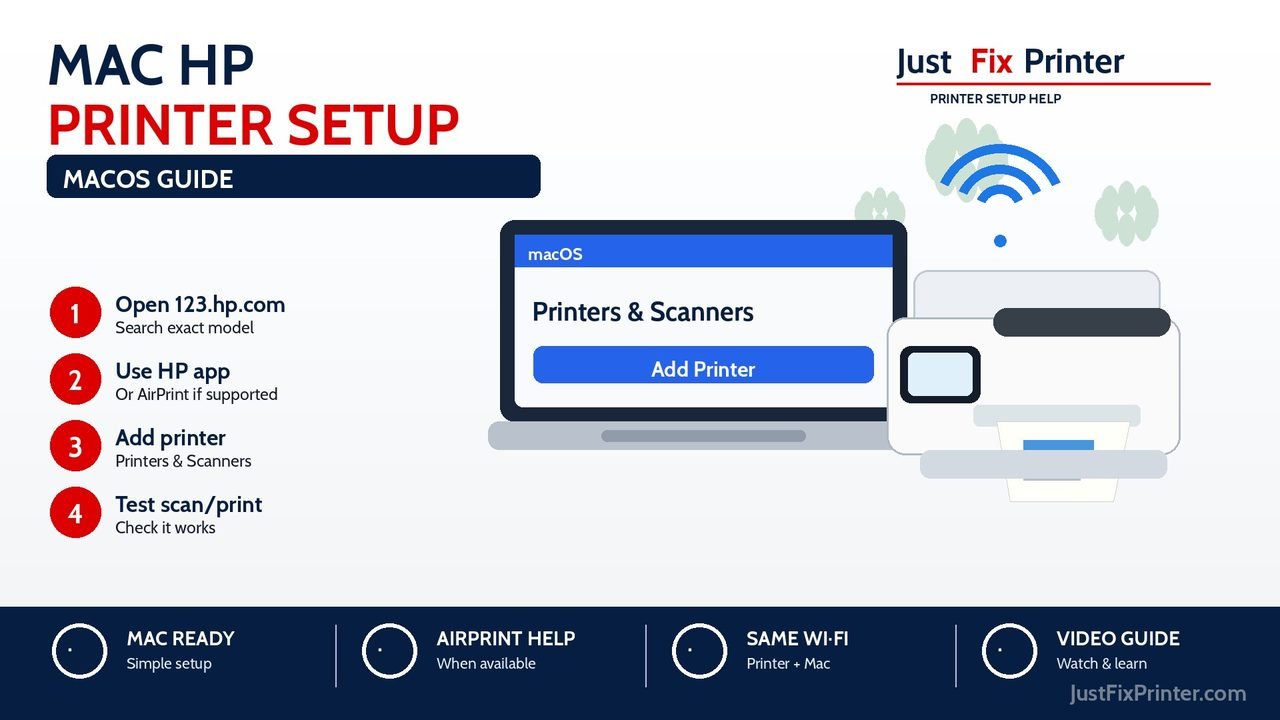
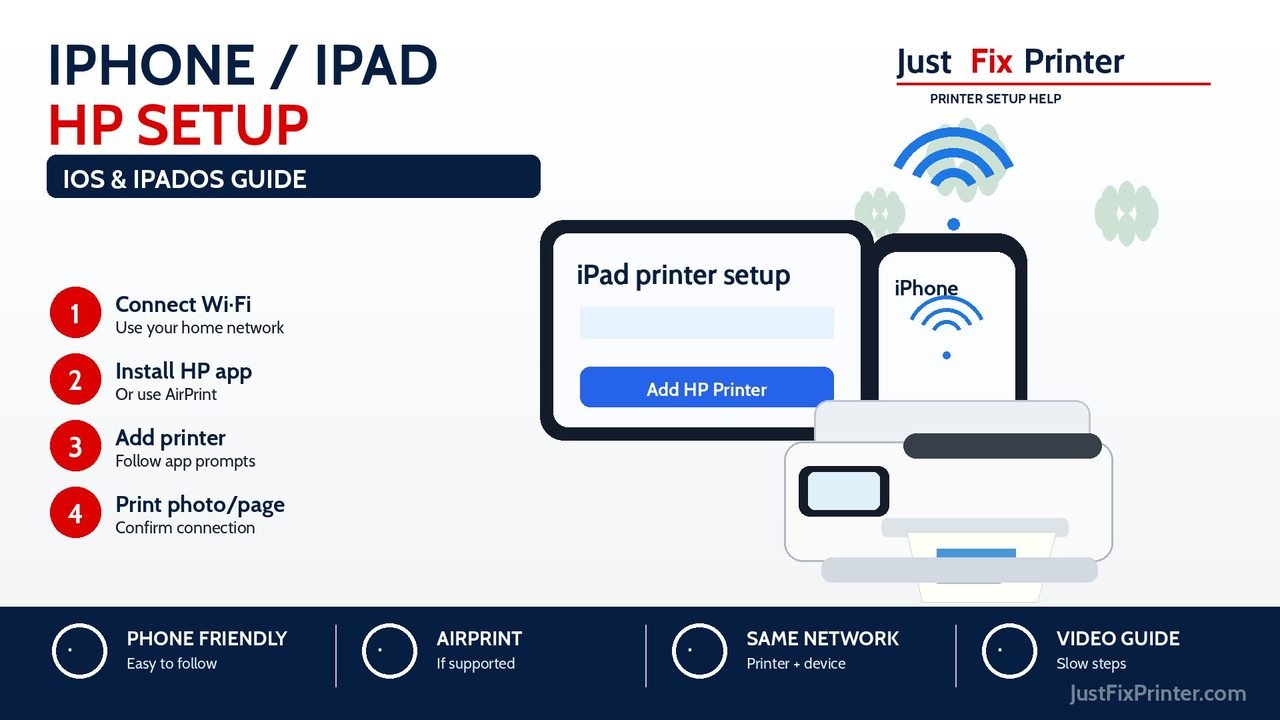
These page-matched images show the main setup path for each device. They are made for the 123.hp.com/setup guide, include the JustFixPrinter.com watermark, and help visitors quickly choose the right screen before they start.
What is 123.hp.com/setup?
123.hp.com/setup is HP's established printer-setup address and may redirect US visitors to HP Start. The official flow identifies the printer and provides the HP app or software appropriate for the device. JustFixPrinter explains what to expect before anything is installed.
For safety, use HP Start or support.hp.com, and confirm that the final destination remains on the hp.com domain.
About HP
HP (Hewlett-Packard) is a global technology company known for personal computers, printers, supplies, and 3D printing, founded in 1939 by Bill Hewlett and David Packard. For printer users, HP's main families are DeskJet (light home use), ENVY (better photos), OfficeJet and OfficeJet Pro (home-office volume), LaserJet (toner-based, high volume), and Smart Tank (refillable ink, lowest running cost) — see our HP buying guide if you haven't chosen a printer yet.
Official HP resources
Official HP pages handle software downloads, warranty, registration, and HP account tools. JustFixPrinter provides independent setup explanations for DeskJet, ENVY, OfficeJet, LaserJet, Smart Tank, and other supported printer families. For safety, type these addresses yourself or use the links below carefully, and avoid random download sites and ads that look like printer setup pages.
| Need | Official HP resource | How to use it safely |
|---|---|---|
| Official HP website | hp.com | Use this for HP company information, product pages, and starting points. |
| General HP support | HP contact and support | Use this for official HP contact options and support navigation. |
| Warranty and registration | HP home / account starting point | Use your product serial number when HP asks for warranty or registration details. |
| HP setup app path | start.hp.com setup | Use this when HP sends you to the current app/setup experience. |
| Drivers and software | support.hp.com/drivers | Choose your exact printer model and operating system before downloading. |
HP app and printer setup
Start with your exact printer model — HP will guide you to the app or software offered for your device.
Open official HP setup →Drivers and software
Choose your printer model and operating system before downloading drivers or setup software.
Open official HP drivers →Once you know exactly what the problem is, HP's own support is genuinely the fastest way to a real fix — they built the hardware and the software, so they can resolve things an independent guide never could. Why JustFixPrinter works this way.
Before you start
- Remove packing tape, cardboard, and plastic protectors from the printer.
- Install ink or toner and load plain paper.
- Turn on the printer and wait until the startup noise stops.
- Keep the printer near the Wi‑Fi router during wireless setup.
- Have your Wi‑Fi network name and password ready.
- Find the exact model number printed on the printer label.
Set up an HP printer from iPhone or iPad
- Connect the iPhone or iPad to your home Wi‑Fi.
- Open HP Start, or use the App Store and confirm the app publisher is HP Inc.
- Search the exact HP printer model.
- Install the HP app when it is shown for your printer.
- Open the app, tap Add Printer or Set Up a New Printer, and follow the prompts.
- Choose your home Wi‑Fi network, enter the password, and wait for the connected message.
- Print one test page or photo.
If your printer supports AirPrint, you may also print from iPhone or iPad when the printer and Apple device are on the same Wi‑Fi network. Our AirPrint troubleshooting guide helps if the printer does not appear.
Set up an HP printer from Android
- Connect the Android phone or tablet to your home Wi‑Fi.
- Open HP Start, or use Google Play and confirm the app publisher is HP Inc.
- Allow nearby-device, Bluetooth, or location access only when the official HP app requests it.
- Tap Add Printer, select your HP printer, and follow the screen prompts.
- Enter the Wi‑Fi password when asked, then wait until the printer shows ready.
If Android cannot find the printer, move the phone and printer closer to the router, restart the printer, and try again. You can also use our mobile printing setup guide.
Set up an HP printer on Windows 10 or Windows 11
- Connect the computer to your home Wi‑Fi or plug in Ethernet.
- Open HP Start and identify the exact printer model.
- Search the exact HP printer model.
- Install the HP app or full driver/software package shown for your printer and Windows version.
- Open the app or installer and choose Add Printer.
- Select Wi‑Fi, USB, or Ethernet only when the setup screen asks.
- Finish setup and print a test page.
If the installer stops or loops, use our printer driver will not install guide before downloading from a different website.
Set up an HP printer on Mac
- Connect the Mac to the same Wi‑Fi network you want the printer to use.
- Open HP Start and identify the exact printer model.
- Install the HP app or HP-supported software when available.
- Open the app and add the printer.
- If needed, open System Settings → Printers & Scanners and add the printer there.
- Print one small page to confirm setup.
Set up an HP printer on Chromebook
Chromebook printing often works through built-in Chrome OS printing. First connect the printer to the same Wi‑Fi network as the Chromebook, then add it from Chromebook printer settings.
- Connect the printer and Chromebook to the same network.
- Open Chromebook settings.
- Open Settings → Device → Printers and scanners → Print. Labels can vary slightly by ChromeOS version.
- Select Add printer and choose your HP printer.
- Print a small test page.
Set up an HP printer on Linux
Linux setup depends on your distribution and printer model. Start with the system printer settings. If the printer is not detected, check whether your model is supported by HPLIP or the printer software recommended by HP.
- Connect the printer to Wi‑Fi, Ethernet, or USB.
- Open your Linux printer settings.
- Add a printer and choose the detected HP device.
- Select the recommended driver if your system asks.
- Print a test page.
Wi‑Fi, USB, or Ethernet: which should you choose?
Wi‑Fi
Best when multiple phones or computers need to print. Keep the printer close to the router during setup.
USB
Best when one computer is near the printer or Wi‑Fi setup keeps failing. Plug in the cable only when setup asks.
Ethernet
Best for office printers with a network port. Connect the cable to the router, then add the printer on the computer.
What if 123.hp.com/setup is not working?
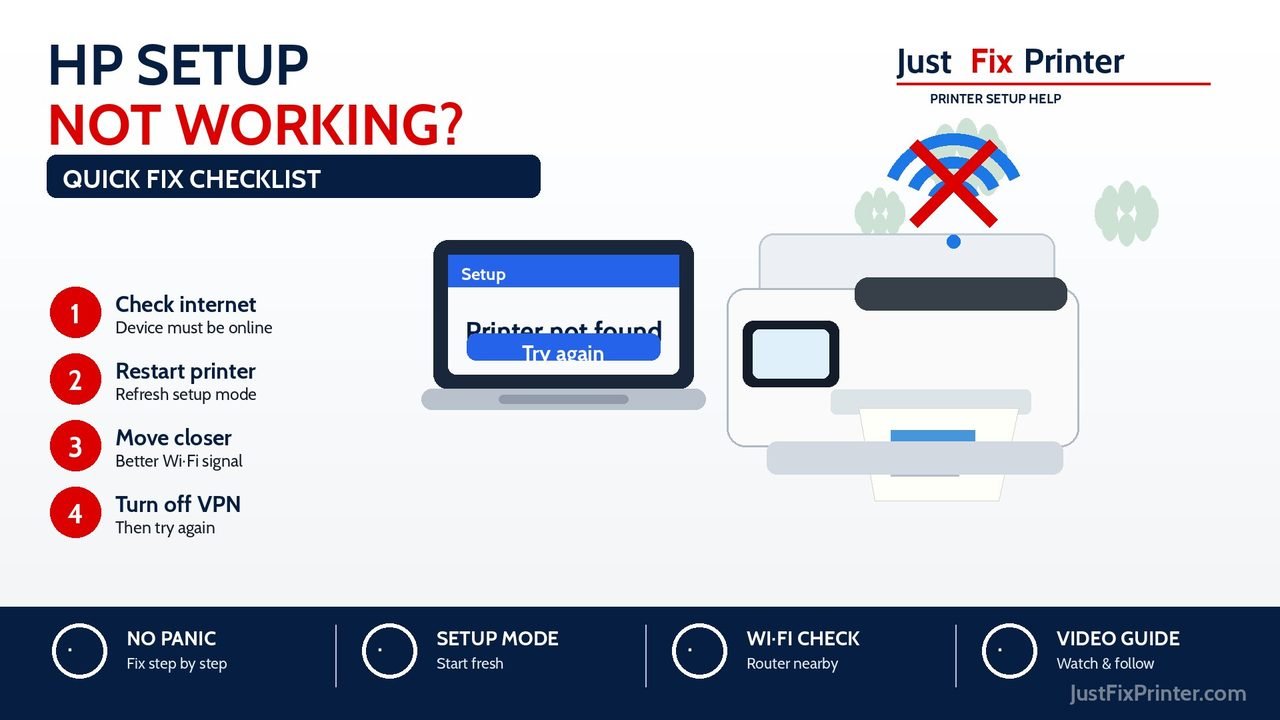
- Make sure the device has internet access.
- Type the address again as
123.hp.com. - Search for the exact printer model, not just the printer family name.
- Restart the printer and your phone or computer.
- Move the printer closer to the router.
- If a VPN may be preventing local discovery, pause it only if you understand the security impact; restore it immediately after testing.
- Restore the printer's Wi‑Fi setup mode if it was already connected to an old router.
- Use our HP printer Wi‑Fi setup guide or printer offline guide for the next fix.
After setup finishes
Do not stop at the connected message. Print one small page and, for all-in-one printers, try one scan. This confirms the printer, driver, app, and network are working together.
- Print a test page
- Scan with an HP printer
- Find your exact HP model page
- Understand Wi‑Fi Direct printing
Frequently asked questions
Is 123.hp.com/setup an official HP setup page?
Yes. It is an established HP setup address and may redirect US visitors to HP Start. Confirm that the final destination remains on hp.com. JustFixPrinter independently explains the process.
Should I click ads that say HP driver download?
No. Type 123.hp.com or support.hp.com directly into the address bar so you avoid fake or bundled driver downloads.
Do I need the HP app?
For many supported printers, the HP app is the easiest path because it can set up Wi‑Fi, install drivers, print, scan, and check ink or toner from one place.
Can I set up an HP printer without Wi‑Fi?
Yes, many HP printers can use USB, and some office models can use Ethernet. Use the connection method your exact printer supports.
Why does the HP app not find my printer?
The most common causes are distance from the router, wrong network, old Wi‑Fi settings saved inside the printer, VPN/firewall blocking discovery, or Bluetooth/location permissions being turned off during setup.
What should I do after the printer connects?
Print one small test page. If the printer is an all-in-one model, also run one scan so you know both printing and scanning work.
Is JustFixPrinter an HP website?
No. JustFixPrinter is an independent printer-help website and is not affiliated with or endorsed by HP. We explain HP printer setup and troubleshooting in plain language and point you to official HP resources when you need them.
Should I use HP support or JustFixPrinter?
Use HP support for official downloads, warranty, registration, account issues, and manufacturer service. Use JustFixPrinter for simple step-by-step instructions before or during setup, and for troubleshooting guides HP's own site doesn't cover in plain language.
Need help with one exact HP model?
Use the 123.hp.com/setup steps first, then open the matching JustFixPrinter model guide for model-specific Wi‑Fi, driver, scan, and troubleshooting help.
Find HP model guides HP Wi‑Fi helpWant this for 123.hp.com/setup HP printer setup?
Download this exact page as a PDF to keep or print — no email required.