Printer is not discovered
Confirm setup mode, move the printer closer to the router, and check local-network or nearby-device permissions requested by the official app.

Setting up a wireless printer does not have to be complicated. HP owners get an interactive finder below that shows only the steps that match their printer; Canon, Epson, Brother, and Lexmark owners get the fastest current method for their brand right after it, along with Bluetooth, Wi-Fi Direct, and what to do if setup won't finish.
Common setup paths can be started in about two minutes. App downloads, firmware updates, network conditions, and model-specific controls can take longer.

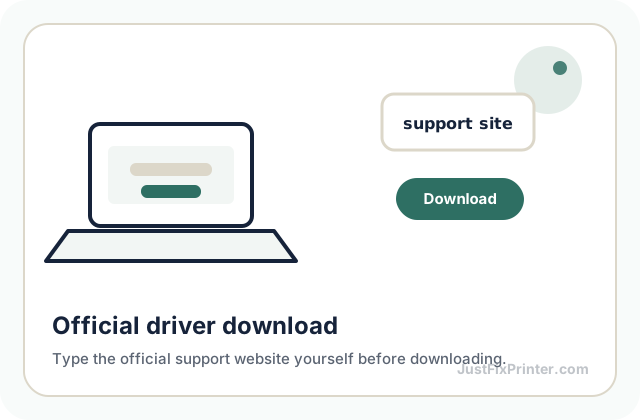
JustFixPrinter provides independent instructions and is not affiliated with or endorsed by HP Inc., Canon, Epson, Brother, or Lexmark. The former 123.hp.com US setup route currently forwards to HP Start. Always confirm the destination domain and app publisher before installing software.
Jump to your brand: HP (interactive finder) · Canon · Epson · Brother · Lexmark · Bluetooth · Wi-Fi Direct
Other topics on this page: Reconnecting after a new router or password · Finding your printer's IP address · Works sometimes, not others · Setting up for a small office
These answers stay in your browser. Do not enter a serial number, Wi-Fi password, IP address, email, or phone number.
The app passes the selected network information to the printer. After joining, the printer and your device can discover each other through the local network.
Touchscreen: Open the Wireless, Network, or Settings menu. Choose Wireless Setup Wizard, select your home network, enter its password on the printer, and confirm.
Display with physical buttons: Use arrow and OK/Select buttons to open the Network or Wireless menu. If Wireless Setup Wizard is available, choose the network and enter the password using the printer controls.
Screenless printer: Do not follow the display instructions above. Use the HP app and setup-mode procedure published for the exact model. Button combinations differ across printer families.
Confirm setup mode, move the printer closer to the router, and check local-network or nearby-device permissions requested by the official app.
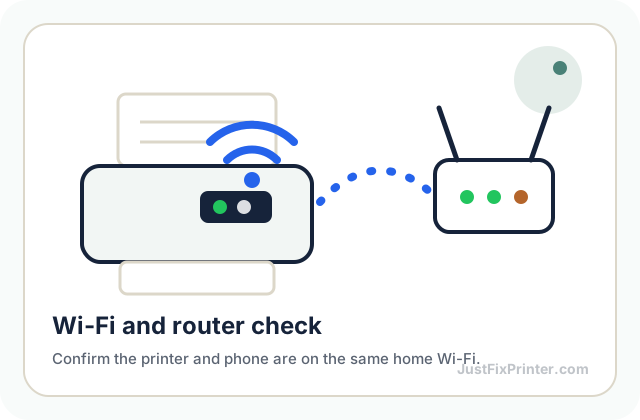
Connect the phone or computer to the intended home network. Guest networks may prevent devices from discovering one another.
Some models require or work more reliably with 2.4 GHz during setup. Check the exact specifications before changing router bands or band steering.
The printer may remember the old network. See reconnecting after a new router or password below.
Advanced network changes: Do not disable security software or change router settings unless verified instructions require it. If a VPN may affect local discovery, pause it only if you understand the security impact and turn it back on immediately after testing.
The printer stores the current network name and password. If either changes, return the printer to setup mode and connect it again.
Wi-Fi connects the printer to the local network. Internet may be needed for app downloads, account features, or updates, but local printing can work independently on supported setups.
The HP tool above is the most detailed on this page, but the same three approaches — brand app, on-printer wizard, WPS — apply to every brand. Here's the fastest current path for each.
For most current Canon printers — PIXMA, MegaTank, and imageCLASS models with a color screen or wireless button — install the free Canon PRINT app (App Store or Google Play), open it, and tap "Add Printer." It scans for nearby Canon printers over Wi-Fi and Bluetooth and walks you through joining your home network — no cables, no driver CD, and it works whether your printer has a screen or just buttons and lights. This is the method Canon's own instructions point to for nearly every printer sold since around 2019. No app? On the printer's display, open the settings/wrench icon, go to Wireless LAN Setup, and choose Cableless Setup Wizard or Easy Wireless Connect — select your network, enter the password on the on-screen keyboard, and confirm. Router has a WPS button? Choose WPS Connection or Push Button Method in the wireless menu, then press the router's WPS button within about two minutes. If your Wi-Fi password contains symbols like & or % and setup keeps failing on an older model, switch to the app — it handles special characters more reliably than the on-screen keypad. After connecting, print a network status page to confirm an IP address and "Connected" status, then install the driver from Canon's official support site by your exact model number.
EcoTank and Expression models both connect the same way in practice: download Epson Smart Panel (App Store or Google Play), tap "+" or "Add Printer," and the app searches for nearby Epson printers over Wi-Fi, then handles the handshake automatically — this covers effectively the entire current EcoTank, Expression, and WorkForce lineup. No app? On the printer, tap the Wi-Fi icon or open Settings → Wi-Fi/Network Settings → Wi-Fi Setup Wizard, select your network, enter the password on the touch keyboard, and confirm — the screen shows "Connection Successful" with the new IP address. Router has a WPS button? Select WPS (Push Button) in the printer's Wi-Fi settings, then press the router's button within the time window shown (typically two minutes). If the printer previously connected to a different network, reset its network settings specifically (not a full factory reset) before running setup again, or it can keep quietly trying to rejoin the old network in the background. Very old routers using WEP encryption instead of WPA2/WPA3 can also cause repeated failures on newer Epson printers — switch to WPA2 if your router supports it. After connecting, print a network status sheet to confirm a valid IP address, then install the official driver from Epson's support site by your exact model.
On the printer's display, go to Menu → Network → WLAN → Setup Wizard — the printer scans and lists nearby networks, select yours, enter the password on the on-screen keyboard, and confirm. This is the most consistent method across Brother's HL, DCP, and MFC lines regardless of model age. Router has a WPS button? Go to Network → WLAN → WPS, then press the router's WPS button within about two minutes to pair automatically. For a phone-first setup, especially on models with no display, install Brother Mobile Connect and follow the "Add Printer" flow, which can guide the printer through a temporary access-point mode to receive your credentials. If setup keeps silently failing, check Settings > Network > Network I/F first — if it's stuck on "Wired LAN" instead of "WLAN" (common after a factory reset or firmware update), no amount of correct Wi-Fi credentials will connect it. Most Brother models only support 2.4GHz — if your router shows one combined network name, the printer may be silently attempting the 5GHz side; temporarily separate the bands if so. Some routers also restrict devices by MAC address — if setup completes on the printer but it still can't be reached, check your router's connected-devices list and allow it explicitly. Confirm the connection by printing a Network Configuration report from the same WLAN menu, then install the driver from Brother's official site by your exact model number.
On the touchscreen, go to Settings → Network/Ports → Wireless → Setup Wizard (wording varies slightly by model) — select your network, enter the password, and confirm. This is the most consistent method across Lexmark's B, MB, MX, and MC series. Router has a WPS button? Select WPS or Push Button Configuration in the wireless settings menu, then press the router's button within the time window shown (typically about two minutes) to pair without typing a password. For a phone-first setup on smaller or screenless models, install the Lexmark Mobile Print app and follow its guided setup flow. Unplug any Ethernet cable before starting Wi-Fi setup — if the printer detects a wired connection, some models prioritize it and skip the wireless step entirely. Many Lexmark models only support 2.4GHz — separate your router's bands temporarily if it broadcasts one combined name. If setup fails repeatedly and your password contains symbols like & or %, the mobile app tends to handle on-screen keypad entry more reliably. Confirm by printing a network setup page from the same wireless menu, then install the driver from Lexmark's support site by your exact model number.
Bluetooth pairing connects your device directly to the printer, with no Wi-Fi network or router involved. Not every printer has it — Bluetooth is a separate radio from Wi-Fi, and plenty of budget and older printers simply don't include it, so check your model's spec sheet or its "Connectivity" settings menu first. To pair: put the printer into pairing mode from its Bluetooth or connectivity menu (look for a "Pair" or "Enable Bluetooth" option, or a dedicated physical Bluetooth button); open Bluetooth settings on your phone, tablet, or computer and select the printer from the list of available devices, usually shown under its model name; and confirm any on-screen pairing code matches on both devices. Bluetooth's biggest advantage is working with zero network infrastructure — useful in a garage, workshop, or anywhere without reliable Wi-Fi. The tradeoffs: range is typically limited to about 30 feet with line-of-sight mattering more than with Wi-Fi, usually only one device can print at a time rather than several people sharing over a network, and print speeds can be slower for larger jobs. If pairing isn't working, confirm Bluetooth is actually enabled on both the printer and your device (not just Wi-Fi), keep them close together during initial pairing even if normal range is longer, and if the printer already has an old paired connection to a different device stored, clear that first from its Bluetooth settings — a common, silent cause of pairing that never completes.
Wi-Fi Direct lets a phone, tablet, or laptop print straight to the printer without going through your home or office router — the printer briefly acts as its own small wireless access point. This is genuinely useful in a few specific situations: no Wi-Fi network available at all (a job site, an outdoor event), a guest who needs to print but shouldn't join your home network, or a router that's down but the printer still needs to work. For everyday use on a stable network, regular wireless printing is simpler. To use it: check the printer's wireless or connectivity menu for a "Wi-Fi Direct" toggle (most current Wi-Fi printers support this, though older or budget models may not) — turning it on typically displays the printer's own network name and password on its screen; on your device, open Wi-Fi settings and connect to that network name (it usually includes the printer's model name) using the password shown; then print normally — the printer appears in your print dialog directly. Worth knowing: while connected to a printer's Wi-Fi Direct network, your device loses general internet access until you reconnect to your normal Wi-Fi afterward — that's the tradeoff for skipping the router.
Most printers store their last known Wi-Fi network and password, and keep quietly trying to reconnect to it even after it's gone — a renamed router, a new one entirely, or a changed password all mean the printer is still looking for a network that, from its perspective, has simply disappeared. Just running the setup wizard again sometimes isn't enough if the old connection is still cached underneath. Reset the printer's network settings first — look for "Restore Network Settings" or "Reset Network Settings" in its network or wireless menu, which clears the old saved connection completely rather than layering a new one on top; this is the step that resolves most stuck reconnection attempts. Confirm your new network's exact name and password, since a new router's default network name is often different from the old one. Then run the setup wizard fresh, through the printer's own control panel or its brand's app, treating it as if setting up a brand new printer. If it still won't connect, confirm your printer actually supports the band your new router is broadcasting — many printers only support 2.4GHz, and some newer routers default to a 5GHz-only or combined network name that can confuse older devices; creating a separate 2.4GHz-only network name often resolves a printer that seems not to see the new network at all.
The fastest way is on the machine itself: on any printer with a screen, tap the Wi-Fi or network icon on the home screen, or go to Settings → Network → Wireless Status (wording varies by brand) — most models show the current address directly, without printing anything. No screen, or want it on paper? Every network-capable printer can print a Network Configuration report listing its IP address, subnet mask, and connection details, usually under Network Setup in the settings menu — many printers without a display trigger this with a button combination (often the Wi-Fi or information button, held a few seconds). You can also check your router's connected-devices list (log into its admin page, typically at 192.168.1.1 or 192.168.0.1, and look for "Connected Devices," "DHCP Client List," or "Attached Devices") or your computer: on Windows, Settings → Bluetooth & devices → Printers & scanners → your printer → Printer properties (under Ports or General); on Mac, System Settings → Printers & Scanners → your printer, where the address appears next to "Location."
Most home routers assign IP addresses dynamically, so a printer's address can change after a router restart or over time as leases expire — normal, but it can break a connection set up using a specific IP rather than the printer's name. If your printer keeps "disappearing" from your computer, either reinstall it using its name via the driver software rather than a typed IP, or set a static/reserved IP for it in your router's DHCP settings so it never changes. You generally only need the IP address for a few specific tasks: opening the printer's built-in web page in a browser for advanced settings, manually adding a network printer that isn't showing up automatically, or troubleshooting why a device can't reach it — for ordinary day-to-day printing, your computer and printer handle this automatically.
If your printer usually works but occasionally fails, drops offline, or times out — rather than being consistently broken — the cause is almost always signal quality or network congestion, not a setup mistake, since a genuine setup error would fail every time. Check the printer's Wi-Fi signal strength indicator first: a consistently weak (not zero) signal works often enough to seem functional but fails unpredictably under slightly worse conditions, like a microwave running nearby. If moving the printer closer to the router isn't practical, a range extender or mesh node positioned between the two can meaningfully improve consistency. Cordless phones, microwaves, baby monitors, and some Bluetooth devices interfere with the 2.4GHz band most printers use, so consider whether failures correlate with a specific time of day or activity in your home. A household with many devices streaming, gaming, or downloading simultaneously can also create enough congestion to delay a printer's lower-priority traffic. If your printer supports Ethernet and you're near a wired network point, a physical connection eliminates wireless interference and signal issues entirely — worth it for any position that's genuinely marginal for Wi-Fi. Occasionally an outdated router firmware causes subtle connectivity inconsistencies; check your router manufacturer's app for available updates.
For a couple of people, simple shared printing works fine. For an actual small office, a proper network setup with a fixed IP address gives everyone reliable, direct access without depending on one computer staying on. Connect the printer directly to the network — Wi-Fi, or better, wired Ethernet for reliability — rather than via USB to one computer, removing the single point of failure where the printer disappears whenever that computer is off or asleep. Reserve a static IP address for the printer through your router's DHCP reservation (sometimes called "static lease"), assigning its known MAC address a fixed IP so every computer's configuration stays valid indefinitely, avoiding the "it worked yesterday but not today" problem an IP change causes. Add the printer on each computer using that fixed IP rather than relying purely on automatic discovery (on Windows, "Add a printer using an IP address"; on Mac, the IP tab in Add Printer). Install the manufacturer's full official driver on every computer individually, rather than a generic OS-installed one, for consistent duplex, tray, and ink/toner-monitoring behavior. For a larger office, look into whether your printer supports basic access control or usage tracking, common on office-oriented laser printers. Document the printer's IP address and the exact driver used somewhere the whole team can find it — it saves real troubleshooting time for the next person adding it to a new computer.
Documentation reviewed September 20, 2026. Exact menus, lights, permissions, and connection methods can vary by printer model, operating system, app version, and region.
Search by the model printed on the printer. Do not enter the serial number.
Find your model guideCheck the saved printer, queue, network, and current status.
Open guide →Use the connected printer to scan from a phone or computer.
Open guide →What to check before assuming anything's actually broken.
Open guide →Tip: match the exact model name on your printer before downloading anything, and avoid lookalike driver ads or unofficial download pages.
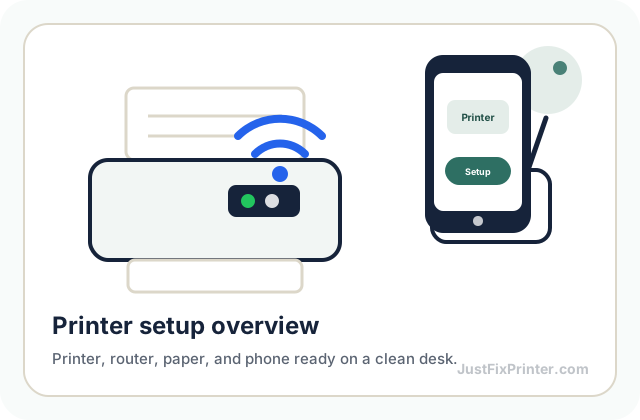
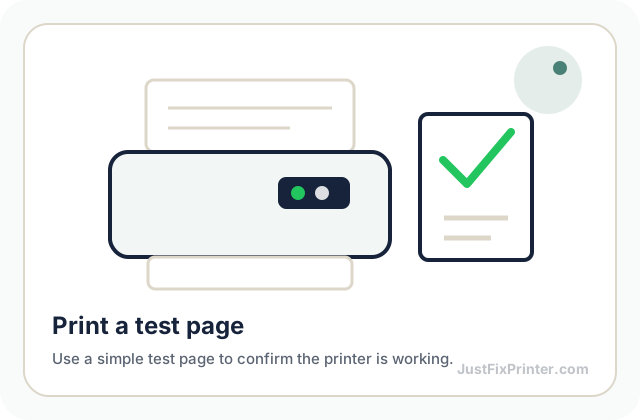
These visuals are matched to this page topic. They show the important printer parts, screens, connections, and test steps using lightweight, fast-loading local images.