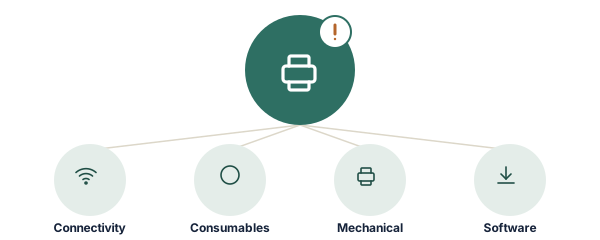
Printer errors look intimidating because they're often shown as a code or a vague phrase with no context. Almost all of them fall into one of four categories — once you know which, the fix is usually obvious. This guide covers the four categories, then the exact fix for every specific error we get asked about most.
A slow, clear JustFixPrinter video for this page is being prepared. The written guide below is ready now and follows the same step-by-step support style.

Know your exact error message already? Use the jump list below the four categories to go straight to it.
A printer's display can only show so much text, so manufacturers compress a wide range of underlying problems into short codes or generic phrases like "printer error" or "device malfunction." That vagueness is what makes errors feel scarier than they usually are. In practice, nearly every printer error is one of four kinds of problem underneath — and beyond the four categories, this page covers the exact fix for the specific messages people run into most.
Connectivity: "No Printers Found" · "Communication Error"
Consumables: Only prints in black & white · Faded or washed-out printing
Mechanical: Won't turn on · "Door Open" / "Cover Open" (by brand) · Canon B200 · Brother "Machine Error 46" · Not picking up paper · Printing blank pages · Streaks, fading, or ghosting · Cleaning a clogged print head · Cleaning rollers, exterior, scanner glass · Envelopes & labels · Wrong paper size / cutoff / borderless · Duplex missing, multiple copies, N-up
Software & driver: Not printing, by brand · Stuck in the queue / spooler missing · Garbled text · PDF won't print correctly · "Memory Full" · Prints slowly · Broke after a Windows update · Printing a test page · Updating firmware · Resetting a printer · Specific error codes decoded
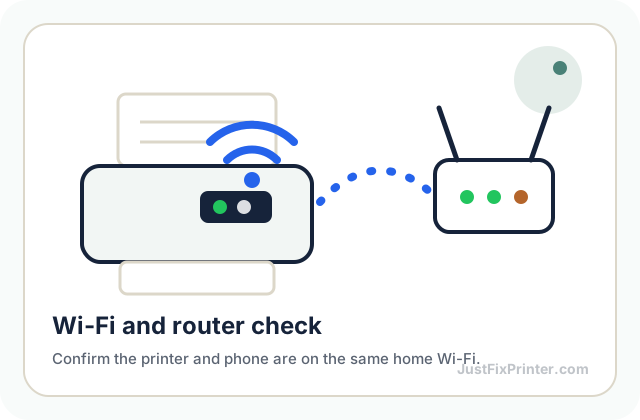
These show up as "offline," "not found," or a printer that simply won't respond to a print job despite being powered on. The underlying cause is almost always that the printer and the sending device aren't actually able to see each other on the network — whether that's a dropped Wi-Fi connection, a printer that joined the wrong network band, or a stale entry in your computer's printer list pointing at a connection that no longer exists. These are usually the fastest errors to resolve because nothing is actually broken; the two devices just need to be reintroduced. If your printer's display is specifically showing "Offline," see our dedicated offline guide; for getting a printer onto Wi-Fi in the first place, see our Wi-Fi connection guide.
When a printer search comes back completely empty, it's almost never because the printer is actually broken — it's because the searching device and the printer aren't looking at each other on the same network. Work through this in order: confirm the printer is fully powered on and past its startup sequence (some take up to a minute to join the network); check the printer's own display for its Wi-Fi status — if it shows "Not Connected," that's the real problem and no amount of searching from the computer will fix it; confirm both devices are on the exact same network, since a guest network, a different band (2.4GHz vs. 5GHz), or a similarly-named neighboring network is a very common culprit; check for "client isolation" or "AP isolation" on your router, a security feature that deliberately blocks devices from discovering each other; and restart both the printer and the router. If discovery still isn't working, skip it and add the printer directly by its IP address — most operating systems support this in the same add-printer dialog, and it works even when discovery itself is broken for reasons that are hard to diagnose. An active VPN or an overly strict firewall can also block the local discovery traffic printers rely on, so try disabling one temporarily if you're stuck.
This message specifically means your computer sent a job but never got a response back — it says nothing about what's actually wrong, so work through the real possibilities in order: check the printer's own network status first (if it's disconnected, that's the whole answer); confirm both devices are genuinely on the same network, since a router restart occasionally reassigns a device to a different segment even though both still show the same network name; restart the Print Spooler service on Windows, since a hung spooler can report communication errors even when the printer is fine; power cycle both the printer and the router; and check whether the printer's IP address changed. If the printer was originally added by its specific IP address rather than by name, a router reassigning that address is one of the most common — and most overlooked — causes of this error. If none of that resolves it, remove the printer from your computer entirely and let your operating system rediscover it fresh, rather than relying on a potentially stale saved configuration.
Anything referencing ink, toner, or cartridges — "cartridge not recognized," "replace cartridge," or a supply-level warning — falls here. Sometimes this means exactly what it says: a cartridge is empty or expired. But it's just as often a false alarm caused by a cartridge not seating fully, a protective tab still covering the electrical contacts, or (with some manufacturers) a cartridge that's technically full but has been flagged due to firmware updates affecting non-original ink.[1] Reseating the cartridge firmly is worth trying before assuming it needs replacing. For the different cartridge and toner types across brands, see our ink and toner cartridge guide.
A color document coming out entirely in black and white is often a settings issue rather than a hardware problem. Check the color/grayscale toggle in the print dialog first — it's the single most common cause, since some applications remember the last-used setting even for a document you intend to print in full color. If that checks out, look for a separate color override inside the specific application you're printing from, then check whether your color cartridges are actually low: some printers silently substitute black-only output rather than failing outright when color ink runs out, particularly on text-heavy documents where the substitution is less visually obvious. If ink levels look fine, run a nozzle check for a color-specific clog, and make sure every color cartridge is fully seated — a cartridge that isn't seated can simply not be used by the printer, similar to how a missing cartridge behaves. On color laser printers, check the supply status screen for a specific empty-color warning, since laser printers are generally more explicit about flagging one color than inkjets are.
Uniformly light or washed-out printing — as opposed to streaks or lines — is almost always related to ink or toner rather than a genuine hardware fault. Check your ink or toner level first, since low supply produces exactly this kind of uniform fading rather than a hard stop. Then check your print quality setting isn't accidentally set to Draft, and check separately for a dedicated "ink saving" or "toner saving" mode, which is easy to enable once and forget about. If levels and settings both check out, run a cleaning cycle for a partially clogged print head (inkjet), or on laser printers, remove and gently rock the toner cartridge to redistribute settled toner. Persistent fading despite full ink/toner, correct settings, and a completed cleaning cycle points to a genuinely worn print head or an unevenly-distributing toner cartridge — at that point, replacement is the real next step. If you're seeing streaks or lines rather than overall fading, that's a related but different problem — covered separately below.
Paper jams, "carriage jam," and anything about an open door or cover belong to this category — something is physically obstructing a moving part. These are the errors where opening the printer and looking is genuinely the right first move, more so than searching for the exact code. Manufacturers assign different numeric codes to essentially the same physical jam depending on which sensor detected it, so two completely different-looking codes can have the identical fix: find the obstruction, remove it gently, check for torn scraps left behind. For a jam specifically, see our dedicated paper jam removal guide.
A printer showing absolutely no signs of life is alarming, but it's usually a power issue rather than a genuine hardware failure. Work through these in order: plug something else you know works into the exact same outlet to rule out the outlet itself; confirm the power cable is firmly seated at both ends (and try swapping a detachable cord if you have one); check that a power strip or surge protector is actually passing power through, since some silently stop after absorbing a power event even with their indicator light still on; hold the power button for a full 5–10 seconds rather than just tapping it; and if nothing works, unplug it completely for a full 5 minutes to let internal capacitors discharge. Also consider that a very deep sleep state can look identical to being powered off — try a single press before assuming it needs a longer one. A printer that shows zero response across all of the above, with the outlet and cable both confirmed good, likely has an internal power supply failure that needs manufacturer service.
This is one of the more disorienting printer errors because it contradicts what you can see. It's almost never actually about the door — it's the sensor that detects it, usually a small physical or magnetic switch near the hinge that doesn't check anything visually. If the door isn't seated in exactly the right position, even if it looks fully closed, the printer reads it as open. The general fix: open and firmly re-close the door until it clicks; check for anything blocking it from seating fully (a stray piece of packaging or a jammed sheet near the hinge); clean the sensor area with a dry cloth; power cycle the printer; and check that the cartridge or drum is fully seated, since on some models the door sensor and the cartridge-seating sensor are linked. Each brand phrases and locates this differently:
HP — "Ink Cartridge Access Door Open": an unseated cartridge triggers this same message even when the door itself is closed correctly — check the cartridges before assuming it's the door.
Canon — "Cover Open": this refers to the ink cartridge access cover specifically, detected by its own sensor separate from the scanner lid. A cartridge sitting slightly proud of its slot is a common cause the cover itself gets blamed for — recheck the cartridge before the cover, especially right after a cartridge swap. A separate issue is the scanner lid itself not staying down, which is a different mechanical problem with its own fix, not this error.
Epson — "Cover Open": most Epson all-in-ones have two separate lids — the top scanner lid and a front or side ink cover — and only the ink cover typically triggers this message, so confirm you're checking the right one. On EcoTank models, a separate small ink-tank cover left open after a refill can also trigger it.
Brother — "Front Cover Open" or "Fuser Cover Open": these are two genuinely different covers. For "Front Cover Open," the toner-and-drum assembly behind it is usually the real cause — pull it out by its center handle, confirm the toner cartridge is locked into the drum unit (a green lock lever should lift when seated correctly), then reinsert and close. For "Fuser Cover Open," open the back cover first and check the fuser cover behind it — checking the front cover again won't fix this one, since it's a completely different sensor.
Lexmark — "Close Door" or "Close Cover": Lexmark's touchscreen usually names the exact door or tray involved rather than a generic message. Read the exact wording before touching anything — assuming it means the front cover is the most common reason this doesn't clear on the first try. If it names a tray, pull that tray fully out and reinsert it firmly until it seats flush.
A persistent false "door open" reading after trying everything above, on any brand, points to a failed physical sensor switch — a hardware issue that needs a manufacturer service inquiry, particularly worth checking against your warranty first.
Error B200 on a Canon printer points to a fault with the printhead — usually overheating, a clogged or dirty printhead, or occasionally a genuine electronic failure.[3] The on-screen message ("unplug and contact service") sounds final, but a hardware replacement isn't always the actual outcome. Try, in order: a full power cycle (off, unplugged for a few minutes, then back on) to clear a temporary overheating stall; check the carriage's full range of motion for anything physically blocking it; with the printer off, clean the printhead and its electrical contacts with a lint-free cloth lightly dampened with rubbing alcohol, then let everything dry for at least a couple of hours before reassembling — reinstalling while still damp is a common reason B200 comes right back; and reseat every ink cartridge fully. If B200 keeps returning despite a clean printhead, no obstruction, and fully-seated cartridges, that does point to genuine printhead failure. Many Canon consumer inkjets — particularly higher-end PIXMA and MAXIFY models — have a separately replaceable printhead distinct from the ink cartridges, which is often more affordable than a full new printer.
This means the internal ink-absorber pad has reached its counted lifetime limit from cumulative print-head cleaning cycles — a real, expected part of how the printer works, not a sign of misuse. Brother's official fix requires a technician to replace the pad, since it's not designed for user access; check warranty status first, since this is exactly the kind of repair warranty coverage is meant for. Out of warranty, you're weighing professional service cost against a replacement printer — on lower-cost consumer models a service call can approach or exceed the price of a new unit. Some models have an unofficial maintenance-mode counter reset, but it resets only the software trigger, not the underlying ink buildup, and varies by model — treat it as a stopgap, not a real fix. Running the cleaning cycle only when print quality genuinely declines, rather than routinely "just in case," slows down how fast a future printer hits this limit.
A printer that shows "out of paper" or won't pull a sheet in, even with a full tray, is a different problem from a jam — nothing is stuck. By far the most common cause is a worn or dusty pickup roller that's lost its grip, either from wearing smooth over years of use or from a coating of paper dust. Check how much paper is loaded first (too little can feed less reliably than a fuller stack), then clean the pickup roller with a lint-free cloth lightly dampened with water — avoid alcohol or harsh cleaners, which make rubber rollers harder and less grippy over time. Check the paper itself for curling, dampness, or sheets stuck together, and confirm the tray guides and any paper-size setting actually match what's loaded. A pickup roller that's genuinely worn smooth needs replacement — these are typically inexpensive and user-replaceable, and searching your model number plus "pickup roller replacement" usually turns up the right part.
Run a nozzle check before anything else — it's the fastest way to know which of three genuinely different causes you're dealing with. If the nozzle check pattern itself comes out blank or gapped, ink isn't reaching the page: check for protective tape or a pull-tab still covering the cartridge's ink outlet, reseat the cartridge firmly, run the built-in cleaning cycle two or three times (a single cycle often isn't enough on a printer that sat unused for a while), and consider that some printers estimate ink level rather than measuring it and can misreport a cartridge as having ink when it's actually dry. If the nozzle check prints fine but your actual documents come out blank, the issue is on the software side: check for a wrong paper size or type selected (some printers silently skip printing rather than showing an error), try a different simple document to rule out a corrupted job, and check whether two sheets fed together, since content can land entirely on the sheet underneath. On laser printers specifically, blank pages usually mean toner that isn't distributing evenly (remove the cartridge and gently rock it side to side) or, on older units, a worn transfer roller.
Not every print quality problem is a clogged nozzle — the specific pattern points to a different cause each time, and treating the wrong one wastes ink without fixing anything. Irregular streaks or gaps in no consistent pattern are the classic sign of dried ink — run a nozzle check, then a cleaning cycle. Uniform fading everywhere points to low ink/toner or a Draft-mode setting, not a clog. A mark that repeats at a fixed interval down every page is very unlikely to be ink at all — it points to a specific rotating component (most often the drum on a laser printer) with a defect marking the page at the same point in every rotation; cleaning cycles and toner swaps won't fix this, so don't waste consumables trying. Measuring the exact interval, and confirming it stays consistent, tells you the most before you touch anything. Thin vertical white lines running top to bottom, especially on inkjets, usually mean specific blocked nozzles — run a nozzle check to confirm which color and position. An unexpected color cast (everything looks slightly green, or one color is missing) usually isolates to one specific cartridge being low, clogged, or improperly seated. Toner that smears or rubs off rather than fusing cleanly points to the fuser unit reaching end of life, a different problem from the ink-pattern issues above that generally needs a service part replacement. Ghosting specifically — a faint, lighter repeat of an image further down the page or the next one, at a consistent distance — happens when a laser printer's drum doesn't fully discharge between rotations; it's more likely on pages with large solid dark areas, and if it persists across varied documents with adequate toner, the drum itself is the fix, not another toner swap.
If prints show faded colors, thin white lines, or missing sections, dried ink in the print head is almost always the cause. Start with the least invasive step and work up: run a nozzle check first (from the maintenance menu or the manufacturer's app) to see exactly which colors have gaps; run the built-in cleaning cycle, which flushes fresh ink through the nozzles under pressure and resolves most clogs on its own; run it a second time if needed, but stop after two or three cycles, since beyond that further attempts rarely help and mainly consume ink; try a Deep or Power Clean mode if your printer offers one, reserved for a stubborn clog the standard cycle can't clear; and only as a last resort, on printers where the print head is a separate removable part from the cartridges (some HP and Canon models), remove it and soak the nozzle area in warm — not hot — distilled water for 15–20 minutes, then let it fully air-dry before reinstalling, never using alcohol or ammonia-based cleaners. Clogging is almost always caused by the printer sitting unused for an extended period; printing something small every one to two weeks is far more effective prevention than any cleaning cycle after the fact.
Beyond the print head, a printer's paper rollers and scanner glass accumulate dust and residue that directly cause feed jams and streaky scans — problems that look like a hardware fault but are really just overdue cleaning. With the printer off and unplugged, dampen a lint-free cloth with a small amount of water (not dripping) and gently wipe the feed rollers while rotating them by hand; built-up dust here reduces grip and is a common, overlooked cause of recurring jams. Wipe the scanner glass with a soft microfiber cloth, since dust or streaks there translate directly into streaks on every scan. Wipe the exterior and control panel with a slightly damp soft cloth, but use only a dry cloth on a touchscreen. Never spray liquid directly onto any part of the printer — always dampen the cloth first — and never use alcohol, ammonia, or abrasive cleaners on the scanner glass or exterior, which can cause permanent clouding. Roller cleaning is worth doing whenever you notice recurring jams, or roughly every few months on a heavily used printer.
Most envelope and label problems trace back to setup, not the printer itself. Use your printer's dedicated envelope slot if it has one — usually far less jam-prone than the main tray. Load with the correct orientation: there's no universal standard across brands for which way the flap faces, so check the small diagram usually printed directly on the tray rather than guessing, since a wrong guess is the top cause of envelope jams. Adjust the paper guides snugly against the envelope, set the paper type to "Envelope" and select the exact size in the print dialog rather than leaving it on a default letter/A4 setting, and print one at a time unless your manual specifically says your model supports stacking. For labels, use the exact template number printed on the sheet's packaging (Avery numbers are the common reference point even for other brands) in whatever software you're printing from — using the wrong one is the single most common cause of misalignment. Print a test run on plain paper first and hold it up to a blank label sheet in front of a light to check alignment before committing real labels, and never run a label sheet through the printer twice, even a partially used one, since heat from the first pass can loosen adhesive on a second. If misalignment persists with the correct template, check your printer's own margin settings and any fine offset controls your label software offers for correcting a consistent drift.
An "incorrect paper size" error or content cut off at the edges almost always comes down to a mismatch between three things that all need to agree: the document's own page size, the paper size selected in the print dialog, and the paper actually loaded in the tray. The single most common version is a Letter (8.5×11") vs. A4 mismatch, especially with documents from outside the US. If specifically the margins are cut off, every printer has a minimum unprintable edge margin it physically cannot reach regardless of settings — check your printer's specified minimum and adjust the document's margins, or use a borderless mode if supported. For borderless printing specifically, select the exact borderless paper size (like "4×6 Borderless," not just "4×6") — choosing the standard size will always leave margins by design. A thin white edge or extra cropping is often expected behavior, not a malfunction: borderless printing slightly enlarges the image so it bleeds past every edge, necessarily cropping a thin strip from all four sides. An uneven border on just one side points to the paper not being flush against the tray guides rather than a settings problem. If you're printing a non-standard size like a label or card, create a matching custom size in the print dialog rather than forcing a standard size to work, which causes both cutoff and jamming.
If the double-sided printing option has vanished from your print dialog, first confirm your printer actually has automatic duplex hardware — check the specs, since if it doesn't, the option genuinely shouldn't appear. If it should have it, check "More settings" or "Printer Properties," since many operating systems hide duplex behind an extra click; update the driver directly from the manufacturer's site, since a generic driver sometimes doesn't expose the full feature set; and check that a physical duplex unit is set to "Installed" rather than "Not Installed" under Device Settings, which a driver update sometimes resets. Some printers also grey out duplex automatically for photo paper, envelopes, or oversized media. Without automatic duplex hardware, print all odd-numbered pages first, then flip the stack and reload it — long-edge (book-style) binding flips left-to-right, short-edge (notepad-style) flips top-to-bottom — before printing the even pages; getting the flip direction backward is what causes pages to print upside down or out of order. For extra, unwanted copies, check the "Copies" field before every print job, since most applications remember the last-used count; also check for a duplicate job left in the queue from an earlier attempt, or a "print to PDF" virtual printer accidentally selected alongside your real one. Unwanted blank pages are usually a document formatting quirk — a stray paragraph mark, table, or section break at the very end that the application counts as its own page — rather than a printer malfunction. To print multiple document pages on one physical sheet (N-up), look for "Pages per sheet" on the main print screen or under "More settings" on Windows, or under the "Layout" option inside the Copies & Pages dropdown on Mac; this can be combined with duplex for even more pages per sheet, though it isn't a good fit for anything where fine text detail matters.
These appear on your computer rather than the printer's own display — a failed installation, a print job stuck in the queue, or a "communication error" between the computer and printer. The printer itself is often completely fine in these cases; the problem lives in the driver, the print spooler, or a mismatch between what the computer thinks is installed and what's actually connected.[2] A driver reinstall resolves the large majority of these.
Two checks resolve this more often than anything brand-specific: clear the print queue of any stuck jobs first, and check the printer's Wi-Fi or network status on its own display. Beyond that, confirm the correct printer is set as default (not a leftover duplicate entry), and restart the Windows Print Spooler service. Each brand also has its own particular gotcha worth checking if those four don't fix it:
HP: check ink or toner levels — some HP models refuse to print entirely once a cartridge is merely low, not just empty, which surprises people expecting a warning instead of a hard stop.
Canon: check ink levels in the Canon PRINT app specifically — low black ink can silently block color print jobs too on some models, which reads as a total failure rather than a supply issue.
Epson: Epson splits into two genuinely different problems. Nothing prints at all — use the general checklist above, plus check for a paper-out or door-open alert some models refuse the job over entirely. Pages come out blank — that's almost always dried ink, not a connection issue; see printing blank pages above.
Brother: check the display for a toner-low or replace-drum message — Brother printers tend to show this clearly on their own screen even when the computer-side queue looks completely normal.
Lexmark: confirm the queue isn't paused at the operating-system level specifically (separate from a stuck job), and check for a low-toner or replace-imaging-unit warning, common on office-class Lexmark models.
A job that shows "Printing..." forever usually jammed because the printer went to sleep, ran out of paper, lost Wi-Fi, or was switched off partway through receiving the file — the print spooler gets confused about the job's status and refuses to move past it, blocking everything sent afterward. On Windows, open the print queue, cancel every pending job (cancel jobs behind a resistant one first if needed), and if jobs still won't clear, restart the Print Spooler service itself from Services. On Mac, open the printer's queue and remove the stuck job, holding Option while clicking the minus button if it resists. A job stuck showing "Deleting..." forever, or a "printer in use" error with nothing actually printing, is the same spooler issue — stop the Print Spooler service, delete every file inside C:\Windows\System32\spool\PRINTERS, then restart the service; on Mac, try removing and re-adding just the printer first, or use "Reset printing system" from Printers & Scanners as a more drastic option. This is different from the Print Spooler service itself failing to start, which is missing from the Services list or crashes right after starting and blocks every printer on the computer at once, not just one job — check the service isn't set to "Disabled," clear the same stuck-file folder above, confirm its RPC and HTTP dependencies are running, and run Windows' built-in printer troubleshooter if it still won't stay up. If the queue clears but immediately re-jams, the underlying condition — most often a dropped Wi-Fi connection — is still present; check the printer's own network status before sending anything else.
Pages full of random symbols or repeated nonsense instead of your document is one of the more alarming-looking problems, but it's almost always a driver mismatch, not a sign the printer is failing — the driver translates your document into a language the printer's processor understands, and the wrong driver produces exactly this kind of garbled output. Confirm you're using the driver matched to your exact model number, not just the general product line, since a driver for a closely related but different model in the same family is a common, easy-to-miss cause. Fully remove the old driver before reinstalling rather than installing on top of it. On Windows, check the printer's port settings for a generic "Text Only" or mismatched port type, which can cause raw, untranslated data to print. Try printing from a different application to isolate whether it's app-specific. If a clean driver reinstall doesn't resolve it, check for a printer firmware update as well, particularly on a printer that's been used with several different computers over time.
Missing images, wrong fonts, blank sections, or a PDF that won't print at all while other documents print fine is very often an issue with the file or the viewer rendering it, not the printer. Confirm it's PDF-specific by printing something else first. Try a different PDF viewer, since not all of them render and print identically, especially with embedded fonts or complex layouts. Try "Print as Image" (often under advanced print settings), which sidesteps font substitution and certain rendering bugs by flattening the page to an image before sending it. Check for missing or non-embedded fonts in the source PDF — this is a document creation issue, not something fixable on the printing side, and re-exporting with fonts embedded resolves it. Also consider that a downloaded or emailed file can be subtly corrupted in ways that display fine on screen but fail specifically when printed, and that a very large, image-heavy PDF can exceed the printer's own memory the same as any large document.
Printers process jobs using a limited amount of their own onboard memory, separate from your computer's memory, and a document with high-resolution images, complex graphics, or simply many pages can exceed what the printer can hold at once. Reduce the print quality setting for the problem document first, since higher quality requires holding more detail per page. Print the document in smaller batches (say, pages 1–20, then 21–40) rather than sending the whole job at once. Reduce image resolution or complexity before printing — an image at full 300 DPI print resolution is far more demanding than one meant for screen viewing. Check whether a resolution setting was left unusually high by default under the driver's advanced settings. If this happens regularly across many different, otherwise-ordinary documents, your specific model may simply have limited memory relative to typical workloads; check whether it supports a memory upgrade.
A printer noticeably slower than usual is normally explainable by a setting, not aging hardware. Check the print quality setting first, always — "Best" or "High Quality" modes lay down significantly more ink or toner per pass and can slow a job down several times over, so switch to Normal or Draft for everyday documents and reserve high quality for photos. Large or complex files with many images or fonts genuinely take longer to process before printing even starts. Wireless transfer is slower than wired for big jobs, particularly on an older or congested network. A printer waking from sleep mode needs a warm-up period of 10–30 seconds for the first page only, which is designed behavior, not a fault. On some office-class printers, very large jobs can also be slowed by limited onboard memory processing the job in smaller chunks.
A printer that worked fine yesterday and stopped right after a Windows update almost never means the printer itself broke — updates can quietly reset driver associations, default ports, or settings. Check the printer still appears in your device list; if it's missing entirely, the update likely removed the device association, so skip to reinstalling. Check whether it's showing "Offline," which is often just a stale status the update left behind rather than a real connection problem — try a test page anyway. Check whether Windows substituted a generic driver (something like "Microsoft IPP Class Driver" instead of your manufacturer's actual driver name), which explains missing duplex, scan, or accurate ink-level features even when basic printing still works. Restart the print spooler to clear a hung state left over from the update. If none of that resolves it, remove the printer entirely and reinstall the current official driver from the manufacturer's site using your exact model number.
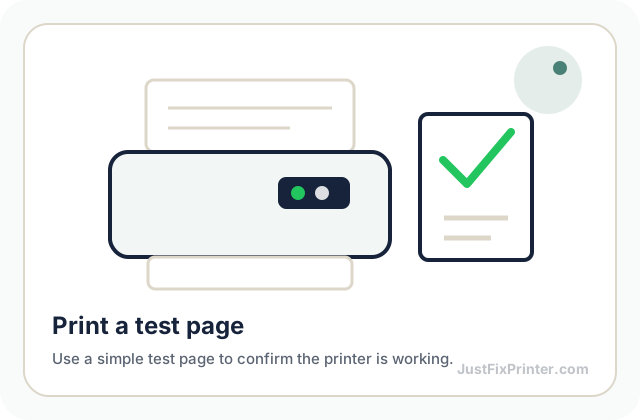
A test page rules out whether a problem is with a specific document or the printer connection itself, and it's a genuinely useful first diagnostic step. On Windows: Settings → Bluetooth & devices → Printers & scanners → your printer → Printer properties → General tab → Print Test Page. On Mac: System Settings → Printers & Scanners → your printer → open its queue → look for a test or diagnostic print option in the queue window's menu. Most printers can also print a status or configuration page directly from their own Setup or Reports menu, with no computer involved at all — useful for confirming the printer's hardware and network status independent of anything on your computer. If the test page prints cleanly, the driver, connection, and printer are all working correctly, and whatever you're troubleshooting is specific to a particular document or app rather than a fundamental connectivity or driver issue.
Firmware is the software running inside the printer itself — separate from the driver on your computer — controlling everything from Wi-Fi behavior to how it interprets cartridge chips. Reinstalling the driver never touches firmware, which is why some connectivity quirks and cartridge-recognition issues persist through a driver reinstall but disappear after a firmware update. Check your current version under Settings → Printer Information or About. The manufacturer's own app (HP Smart, Canon PRINT, Epson Smart Panel, Brother Mobile Connect) is generally the easiest and safest way to update, since it handles the download and verification automatically; most current printers can also check for updates directly over Wi-Fi with no computer involved, under Settings → Tools or Printer Maintenance. Only download firmware manually from the manufacturer's official site for your exact model, never a generic or third-party source. Never turn the printer off mid-update — interrupting a firmware update partway through can corrupt the printer's internal software in a way that sometimes requires a service repair, one of the few printer mistakes that can cause lasting damage.
Every brand offers the same three levels of reset, and the right one depends on the actual symptom. A power cycle — off, unplugged a full 60 seconds, back on — resolves most stuck errors and a printer that's simply stopped responding, without touching any settings; always try this first, no matter the brand or symptom, since it never risks losing a setting. A network settings reset clears only the saved Wi-Fi configuration, for when the printer keeps dropping off Wi-Fi or can't find your network but everything else works fine. A full factory reset wipes everything back to out-of-box condition — reserve this for selling or recycling the printer, or when nothing less drastic resolves genuinely erratic behavior. The exact menu path differs by brand:
HP: network reset at Settings → Network → Restore Network Settings (or the HP Smart app); factory reset at Settings → Tools → Restore Factory Defaults.
Canon: network reset at Setup → Device Settings → LAN Settings → Reset LAN Settings; factory reset at Setup → Device Settings → Reset Setting → Reset All.
Epson: network reset at Settings → Network Settings → Network Restore Default Settings; factory reset at Settings → Restore Default Settings → All Settings.
Brother: network reset at Settings → All Settings → Network → Network Reset; factory reset at Settings → All Settings → Initial Setup → Reset → Factory Reset.
Lexmark: network reset at Settings → Network/Ports → Network → Network Setup → Restore Factory Defaults (this one keeps your address book and stored jobs intact); factory reset at Settings → Device → Restore Factory Defaults.
On models without a screen, factory reset is usually a specific button-hold combination on power-up that varies by model — check your manual before attempting it. A reset clears software-level state only; it won't fix a genuine hardware fault like a jammed roller or failed print head, so if the same problem returns immediately after a reset, the cause is almost always physical.
A few specific codes get searched more than almost any other printer error. Here's what each actually means, verified against manufacturer forums and support documentation.
C0000022 is a Windows system error code, not something printer manufacturers assign — a general Windows "access denied" code that shows up during driver installation because that's when Windows grants a new program permission to install low-level drivers, though the same code appears in unrelated contexts too. The real causes are almost always: the installer wasn't run as administrator; antivirus or security software is blocking it; a stuck or failed Windows Update, checkable under Settings → Update & Security → Update History; or on macOS, a security/permission restriction under System Preferences → Security & Privacy.
Canon E02 consistently points to the printer not detecting paper correctly or a paper path obstruction, not a hardware failure. Check for a jam or obstruction in every access panel; reload the paper properly, fanned and aligned against the guides; clean the paper feed rollers; and power cycle. On a printer using a continuous ink system rather than cartridges, a too-tight ink supply cable preventing the cartridge door from closing can also trigger it.
Generic single-digit "E" codes like E0 or E1 have no universal meaning across brands, or even always across models from the same brand — manufacturers assign these internally, and any page claiming one universal meaning without asking your exact model first is guessing. What is genuinely true across most brands: a short numeric or lettered code usually indicates a hardware-level issue (a paper sensor, an ink/toner system fault, a mechanical fault) rather than a software one. The reliable way to get the real answer is searching your exact model number plus the exact code on your printer brand's own official support site.
HP "49 Service Error" (commonly 49.4C02 and similar) means the printer received print data it couldn't understand — in most cases a specific stuck job or communication hiccup, not broken hardware. Clear the print queue completely; power cycle with the network/USB cable disconnected — if the printer reaches a normal ready state with nothing connected, the error was being triggered by an external job; check for a firmware update tied to a known issue; and remove any add-in memory or accessories if your model has them, then retest. A 49-series error that returns immediately at power-on with absolutely nothing connected, after a firmware update, and with add-in memory removed, does point to a genuine formatter-board hardware fault needing professional service.
Lexmark "900 Firmware Error" can mean two genuinely different things, and one test tells you which: turn the printer off, disconnect every cable except power, and turn it back on. If the error disappears, it's a network or communication issue — reconnect cables one at a time and check the network side, or whether the printer sits on a power strip or old UPS causing power fluctuations. If the error persists with nothing connected, try a firmware update first; if it returns immediately even after a successful update, that points to a mainboard-level hardware fault requiring professional service.
Knowing the category tells you where to look, but for anything beyond a quick fix, the exact code still matters — especially for mechanical errors, where a manufacturer's official support page can tell you if a code indicates a wearing part (like a fuser or roller) rather than a simple one-time jam.
Searching that exact code only on the manufacturer's real support domain avoids the sites that show the same generic troubleshooting for every code and push you toward calling a phone number instead of just telling you the fix.
Download this exact page as a PDF to keep or print — no email required.
Our error lookup tool takes your model and the exact code and searches the manufacturer's own support site directly, so you get their current, correct fix.
Use the error lookup toolThe most common reasons, in order of likelihood.
Read the article →The safe removal sequence, and when a recurring jam means something more.
Read the article →What's actually different between standard, XL, and refillable systems.
Read the article →These visuals are matched to this page topic. They show the important printer parts, screens, connections, and test steps using lightweight, fast-loading local images.